
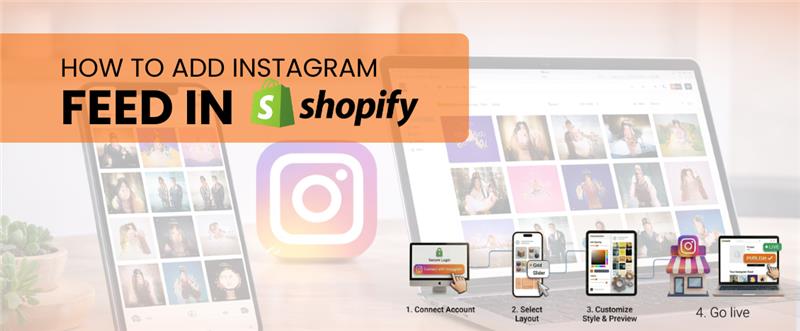
Adding an Instagram feed App into your Shopify store is a good way to get customers more engaged. It helps build trust and makes your store look better.
Shoppers these days want to see pictures and videos before buying something.
An Instagram feed on your website shows them real experiences with your brand.
You do not have to upload images one by one.
There are Instagram feed apps for Shopify that can show your social media posts on your store automatically.
This way your website always has content and visitors can see products through real customer interactions on Instagram feed.
It keeps your store updated. Helps customers discover products.
An Instagram feed app can really help.
Why Add Instagram Feed to Shopify Store?
Integrating Instagram posts into your Shopify site turns media activity into a strong marketing tool. People trust pictures more than ads, which makes your brand look more credible.
Here are the benefits:
- Build trust, with your brand ild trust with your brand: Authenticity is the ultimate currency; real photos and reviews prove you are a legitimate business.
- Keep visitors on your site longer: Engaging user-generated content (UGC) acts as a visual discovery tool that reduces bounce rates.
- Get sales: Social proof removes the “fear of the unknown,” giving customers the final nudge they need to checkout.
- Keep your store looking fresh and new: Automating a feed of customer posts ensures your site content evolves without manual updates.
Modern Shopify tools automatically update whenever new Instagram posts are shared so your store always has content.
Step-by-Step Guide to Add Instagram Feed to Shopify
Step 1: Install Shopify Instagram Feed App
Go to the Shopify App Store and install an Instagram Feed App. After you install it you will see the app in your Shopify admin dashboard.
Step 2: Connect Your Instagram Account
Open the app settings. Connect your Instagram Business or Creator account safely. This link lets your store and Instagram talk to each other automatically.
Most of these apps use a connection to get your posts, reels and media straight from your Instagram account.
Step 3: Customize Instagram Feed Layout
You can decide how your picture gallery looks on your stores website, like:
- Grid layout
- Slider layout
- Carousel display
- Masonry gallery
Step 4: Select Feed Placement
You can use Shopifys Theme Editor to put the gallery in spots, such as:
-
- Homepage
- Product pages
- Collection pages
Footer or custom sections
Step 5: Enable Auto Sync
This means your Shopify Social Feed App and your Instagram account will always be up, to date and your Shopify Social Feed App will always show your Instagram posts.
Build Trust with Customers
Get People Talking
Help Customers Find New Things
Save Time and Effort
Why use the MageCurious Shopify Instagram Feed App?
The MageCurious Shopify Instagram Feed App is an useful tool for Shopify Store. It is easy to use and works well. People who have a Shopify Store can install the MageCurious app connect their Instagram accounts and show their Instagram feeds on the store without needing to do a lot of work.
The MageCurious app has good features like different layouts, automatic updates and easy Instagram Feed Integration with Shopify. This helps businesses turn the time people spend on media into real chances to make sales, with the MageCurious Shopify Instagram Feed App and the Instagram Feed App.
Conclusion
I think it is really important for any brand to know how to add Instagram Feed to Shopify. This is because they want to use media to help their online store grow. A good Shopify Instagram Feed App helps store owners show Instagram posts to their customers. This helps customers trust the brand more and like the store
