

Hello Everyone,
In this blog we will learn how to generate report orders in Magento 2?
Without wasting your time, let us guide you straight away. Follow the easy step given below to edit your details in magento 2.
STEPS FOR GENERATE REPORT ORDER IN MAGENTO 2
Step 1: First go to the Magento 2 store Admin Panel and login.

Step 2: Make configuration settings as follows:
- Date Used: Here you have two options, Order Created or Order Updated.
- Period: Set it as Day, Month or Year according to the type of report you need.
- From: When creating an order set this field.
- To: When the order is valid, set this field.
- Order Status: Defines from which order status the report is generated. Option Any includes all types of orders except cancelled orders. Provides further options for selecting specific order statuses from the Select option list.
- Empty Rows: Setting this to No will exclude empty rows in the report.
- Show Actual Values: Setting this to No will prevent the actual product prices from being mentioned in the report.

Step 3: Once done with the configuration, click on the Show Report button.
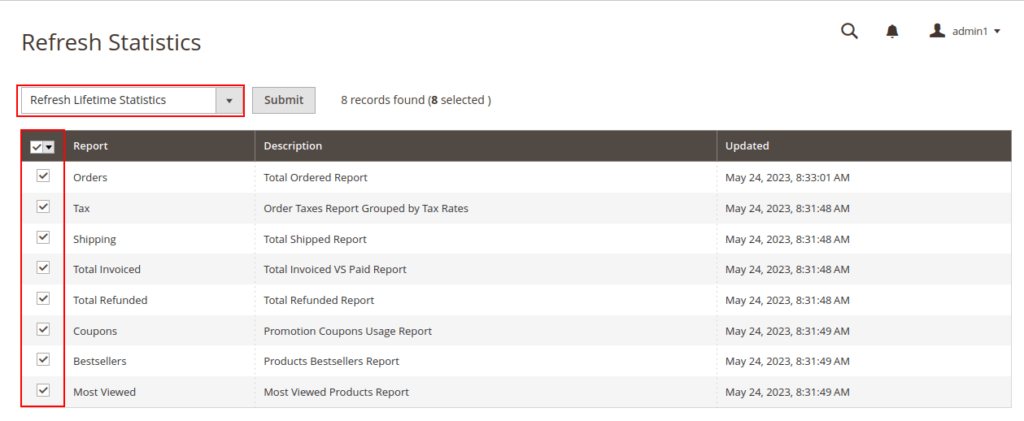
Step 4: Now click on the anchor text Statistics.

Step 5: Select all reports & choose Refresh Lifetime Statistics and after that click the Submit button.
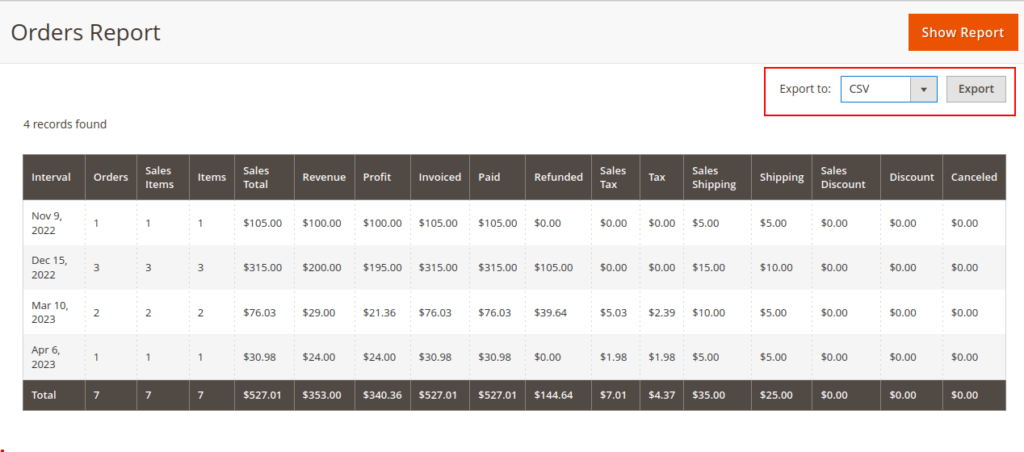
Step 6: After that go back reports and click on the Show Report button to generate the Order Report. Based on the specified time period the report will be generated as shown below.

Step 7: Now reports can also be saved to a CSV file or Excel file. Select the format and click on Export.
Final Thoughts:
So this was the easiest way which we have told you in this blog. This is how you can generate report order in Magento 2. Hope you liked the blog.
So quickly go to the comment box and tell me how you like this blog?
Stay tuned with us on our site to get new updates of Magento.
Thanks for reading and visiting our site.
