

Hello Everyone,
In this blog we will learn how to enable single store mode in Magento 2?
Without wasting your time, let us guide you straight away. Follow the easy step given below to edit your details in magento 2.
STEPS FOR ENABLE SINGLE STORE MODE IN MAGENTO 2
Step 1: First go to the Magento 2 store Admin Panel and login.
Step 2: Now go to the menu bar on the side. Click on the Store > Settings > Configuration.
Step 3: Then expand the General tab and select the General option.
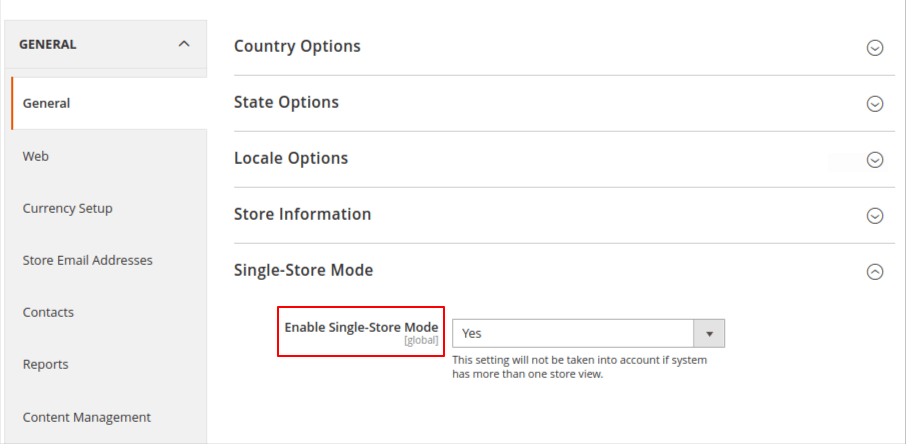
Step 4: Now click on the Single Store Mode Option and set Enable Single-store Mode field to YES.
Step 5: Now go to the SAVE button.
[When prompted to clear the cache, select Manage Cache, select the Page Cache checkbox, set the Actions to Refresh and Submit.]
Final Thoughts:
So this was the easiest way which we have told you in this blog. This is how you can enable single store mode in Magento 2. Hope you liked the blog.
So quickly go to the comment box and tell me how you like this blog?
Stay tuned with us on our site to get new updates of Magento.
Thanks for reading and visiting our site.
