

Hello Everyone,
In this blog we will learn how to set locale, language & country in Magento 2?
Without wasting your time, let us guide you straight away. Follow the easy step given below to edit your details in magento 2.
STEPS FOR LOCALE, LANGUAGE & COUNTRY IN MAGENTO 2.
Step 1: CONFIGURING LOCAL OPTIONS
- First go to the Magento 2 store Admin Panel and login.
- Now go to the menu bar on the side. Click on the Store > Settings > Configuration.
- Now choose the left hand side General Option.
- Then navigate to the Locale options.
- Choose your Time-Zone from the list.
- Choose your store language in the Locale field.
- set the measurement unit that is generally being used for shipments from the Locale in the Weight Unit field.
- Choose your First Day of the Week of working in your sare.
- select the days that are considered as Weekend Days in your region. To choose numerous days, hold the Ctrl key.
- Click on Save Configuration completing the process.

Step 2: CONFIGURING STATE OPTIONS
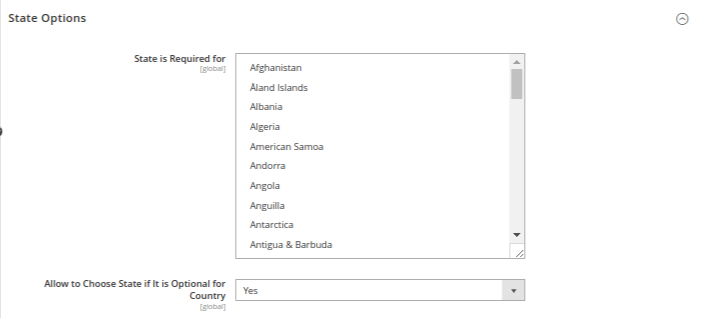
- Navigate to the State Options Section on the admin panel.
- In the State is Required for field, enter the state/region that is required.
- Choose from the options Yes or No in the Allow to Choose State if it is Optional for Country.
- Choose Yes if the state field is optional to enter in the country that you have specified.
- Choose the No option if the country omits the state option.
- Click on Save Configuration completing the process.
Step 3: CONFIGURING COUNTRY OPTIONS
- Navigate to the Country Options Section on the admin panel.
- In the Default Country field, select the country where you are originally located.
- In the Allow Countries field, choose the nations you want to accept orders from.
- In the Zip/Postal Code is Optional for the field, pick the country names in which the zip codes are optional.
- In the European Union Countries field, select all the nations of the European Union where you carry out trading.
- In the Top destinations field, select your prime countries of business.
- Click on Save Configuration completing the process.

Final Thoughts:
So this was the easiest way which we have told you in this blog. This is how you can set locale, language & country in Magento 2. Hope you liked the blog.
So quickly go to the comment box and tell me how you like this blog?
Stay tuned with us on our site to get new updates of Magento.
Thanks for reading and visiting our site.
