

Hello Everyone,
In this blog we will learn how to enable automatic backup in Magento 2?
Sometimes our data gets deleted by mistake. Otherwise, if there is a cyber attack, then you will find it very difficult to backup your data.
Many times we can’t recover data. But If you are a Magento store owner then you should be worry free.
You don’t need to worry about data loss. Because Magento provides a built-in backup tool that helps you take backups.
So let’s go ahead to get more information about this tool.
ENABLE AUTOMATIC BACKUP TOOL STEP BY STEP:
- First of all, you have to login to the Magento admin dashboard.
- Make the project root directory negative.
- You can back up Magento 2 from the terminal using the CLI command syntax.
- Log in to the Magento admin panel and navigate to Stores > Settings > Configuration > Advanced > System.
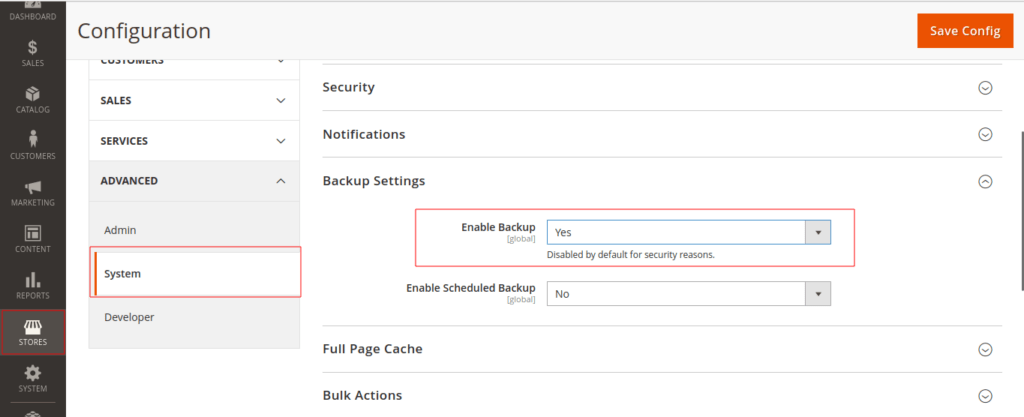
- Now go to the backup setting section and choose Yes to enable backup.
- Along with this, there will be another option Enable Scheduled Backup, fill yes in that too.
- Now apply the required settings for automatic backup given in Magento 2.
- Schedule Backup Type: Select the backup type.
- Start Time: Set the time to create a backup.
- Frequency: Set the frequency as Daily, Weekly & Monthly.
- Maintenance Mode: Set Yes.
After making all these changes, press the Save Config button available on the top right side of the screen.
Final Thoughts:
So this was the easiest way that we told you in this blog. In this way you can take backup of your data. Hope you have liked the blog.
So quickly go to the comment box and tell me how you like this blog?
Stay tuned with us on our site to get new updates of Magento.
Thanks for reading and visiting our site.
