

Hello Everyone,
In this blog we will learn how to import history views in Magento 2?
As we all know, nowadays everything is online.That’s why everyone saves their important data online. We import the data when needed. Similarly, you can import your old data in Magento.
Without wasting your time, let us guide you straight away. Follow the easy step given below to edit your details in magento 2.
STEPS FOR THE IMPORT HISTORY VIEW IN MAGENTO 2
Step 1: First go to the Magento 2 store Admin Dashboard and login.
Step 2: Now go to the System > Data Transfer > Import History.
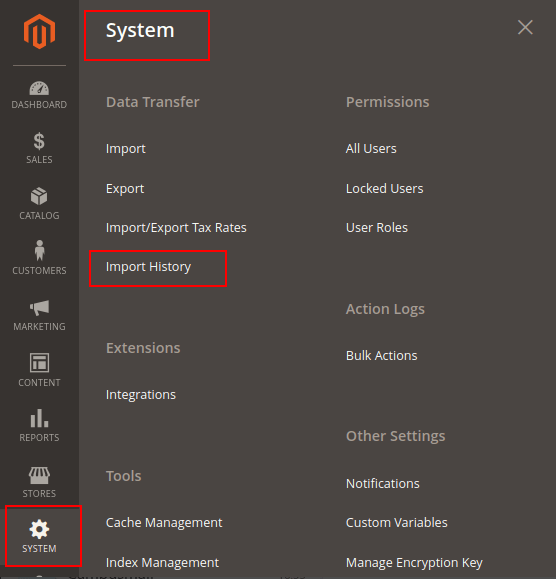
Step 3: Now you can view detailed information about the import history.
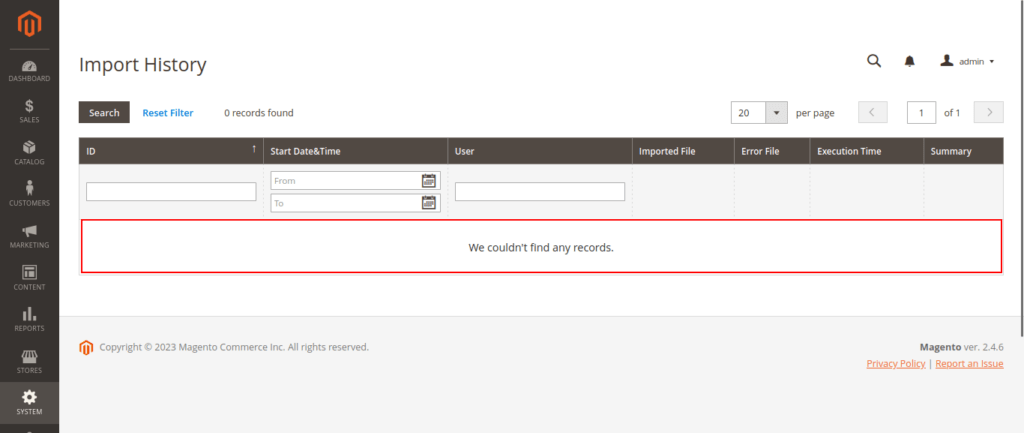
- ID: The ID of the import is unique.
- START DATE & TIME: You have to enter the date from which you want to import the data.
- USER: User who made imports.
- IMPORTED FILE: Download imported files.
- ERROR FILE: Error file on import, if any.
- EXECUTION TIME: Import process time dureation.
- SUMMARY: Create, delete, update & errors number of items.
Step 4: To download the imported file, click download under the imported file column.
FINAL THOUGHTS:
So this was the easiest way which we have told you in this blog. In this way you can import history views in Magento 2. Hope you have liked the blog.
So quickly go to the comment box and tell me how you like this blog?
STAY TUNED WITH US ON OUR SITE TO GET NEW UPDATES OF MAGENTO.
Thanks for reading and visiting our site.
