

Hello Everyone,
In this blog we will learn how to disable admin password expiration in Magento 2?
Without wasting your time, let us guide you straight away. Follow the easy step given below to edit your details in Magento 2.
STEPS FOR ADMIN PASSWORD EXPIRATION DISABLE IN MAGENTO 2
Step 1: First go to the Magento 2 store Admin Panel and login.
Step 2: Now go to the menu bar on the side. After this, go to Stores > Settings > Configuration.
Step 3: Under the Advance select Admin.
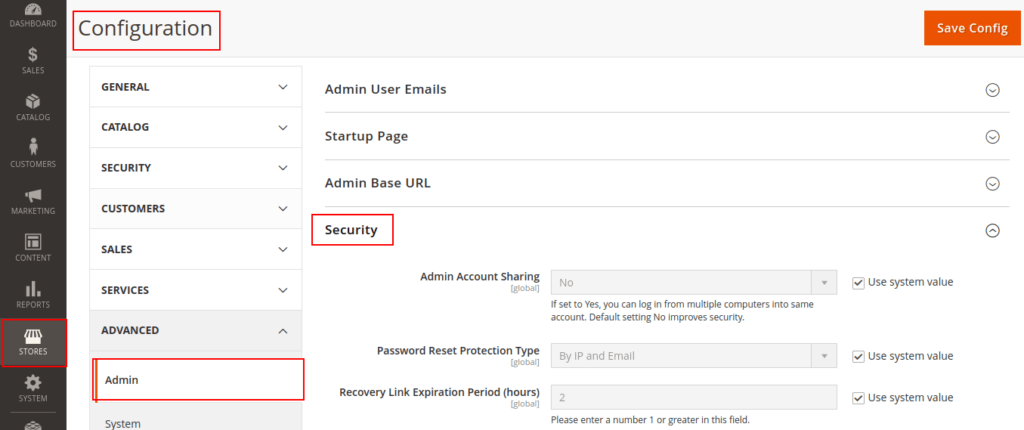
Step 4: Click on the Security.
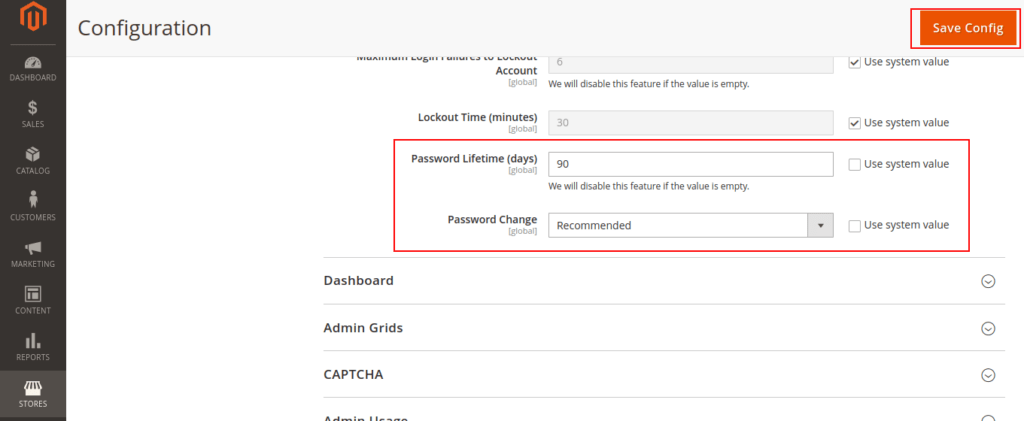
- Password Lifetime [Days] :- You can enter the number of days the password is valid. If the value is left blank, the feature will be disabled.
- Password Change :- Can be a Recommended or a Forced value.
- Forced :- The value forces the administrator to change the password after setting up the account.
- Recommended:- The value prompts the administrator to change the password after setting up the account.
Step 5: Now go to the Save Configuration.
Final Thoughts:
So this was the easiest way which we have told you in this blog. This is how you can disable admin password expiration in Magento 2. Hope you liked the blog.
So quickly go to the comment box and tell me how you like this blog?
Stay tuned with us on our site to get new updates of Magento.
Thanks for reading and visiting our site.

thanks ….its helpfull