

Hello Everyone,
In this blog we will learn how to configure product items in Magento 2?
Without wasting your time, let us guide you straight away. Follow the easy step given below to edit your details in magento 2.
STEPS FOR CONFIGURE PRODUCT ITEMISE IN MAGENTO 2
Step 1: First go to the Magento 2 store Admin Panel and login.
Step 2: Now go to the menu bar on the side. Click on the Store > Configuration > Catalog > Storefront.
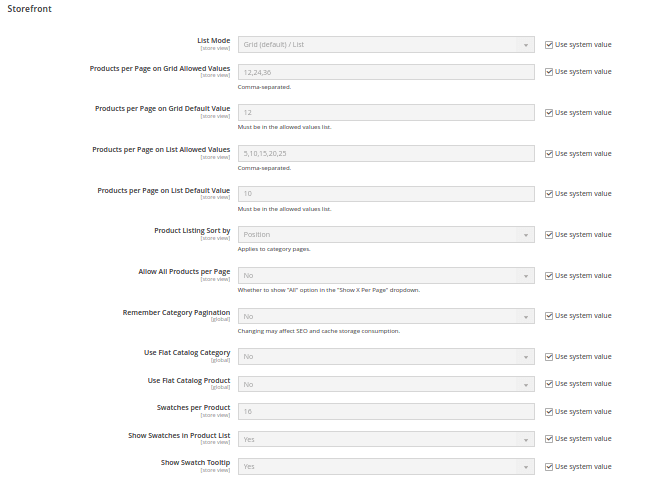
Step 3: Then follow the below configuration as per your requirement.
- List Mode:- Select as per your requirement from the dropdown that follows. [ Grid Only, Grid (Default) / List, List Only, List (Default) / Grid ]
- Products per page on Grid allows values:- Enter number of products to be displayed on the grid as per your requirement. you want to set a list of values, add the numbers using commas.
- Products per page on Grid default value:- Enter the number to set the grid as the default for product display per page.
- Products per page on list allowed values:- Enter the number according to the page that will be displayed. You want to set a list of values, add numbers by using commas.
- Products per page on list default value:- Enter the default number you want to set as the product the page displays in the list.
- Product Listing Sort by:- Select as per your thirst to sort your products on the basis of Position, Product Name and Price.
- Allow All Products per Page:- Select yes to display the users a list of all products.
- Remember Category Pagination:- Set YES to retain the pagination settings based on customer search with the catalogue listings.
- Use Flat Catalogue Category:- For using flat catalogue category set YES in this option.
- Use Flat Catalogue Product:- For using flat catalogue product set YES in this option.
- Swatches per Product:- Enter the number according to your requirement to display swatches per product.
- Show Swatches in Product List:- Set YES if you desire to display swatches in the product list.
- Show Swatch Tooltip:- Set YES if you desire to display swatch tooltips in the product list.
Step 4: Now go to the SAVE Configuration.
Final Thoughts:
So this was the easiest way which we have told you in this blog. This is how you can configure product items in Magento 2. Hope you liked the blog.
So quickly go to the comment box and tell me how you like this blog?
Stay tuned with us on our site to get new updates of Magento.
Thanks for reading and visiting our site.
