

Hello Everyone,
In this blog we will learn how to configure value added VAT in Magento 2?
Without wasting your time, let us guide you straight away. Follow the easy step given below to edit your details in magento 2.
STEPS FOR CONFIGURE VALUE ADDED VAT IN MAGENTO 2
STEP 1: First go to the Magento 2 store Admin Panel and login.
STEP 2: Now go to the Stores > Taxes > Tax zones and Rates.

STEP 3: After that compose Product Tax Classes.
- Log in to the Admin Account from the store backend.
- Now go to Stores > Taxes > Tax Rules.
- Now tap the Add New Tax Rule section.
- Extend the Additional Settings tab.
- Under the Product Tax Class section, Tap on the Add New Tax Class option.
- Add the following three classes to the Product Tax Class list by clicking the tick mark symbol each time you add new.

- VAT Standard
- VAT Reduced
- VAT Zero
STEP 4:- After that compose Tax zones & Rates.
- Log in to the Admin Account from the store backend.
- Goto Stores > Taxes > Tax Zones and click on Rates.
- Click the Add New Tax Rate and enter the necessary information.
- At last, click Save Rate.

STEP 5:- After that compose Tax Rules.
- Log in to the Admin Account from the store backend.
- Goto Stores > Taxes > Tax Zones and click on Rates.
- Click the Add New Tax Rule and enter the necessary information.
- At last, click Save Rule.

STEP 6:- Now Implement tax classes to products.
- Log in to the Admin Account from the store backend.
- Navigate to Catalog > Products.
- Select the product for which you want to apply tax rules.
- Move to the Tax Class field and select the appropriate Tax Class from the list you want to apply for that product.
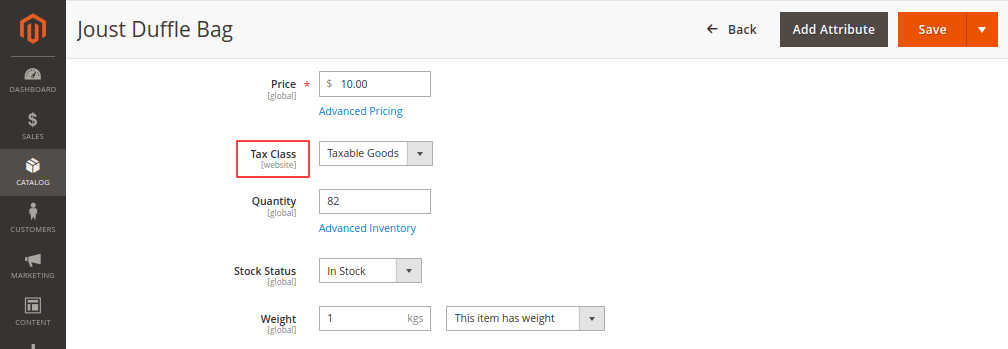
STEP 7:- Click on save configuration.
Final Thoughts:
So this was the easiest way which we have told you in this blog. This is how you can configure value added VAT in Magento 2. Hope you liked the blog.
So quickly go to the comment box and tell me how you like this blog?
Stay tuned with us on our site to get new updates of Magento.
Thanks for reading and visiting our site.
