

Hello Everyone,
In this blog we will learn how to custom order status created in Magento 2?
Without wasting your time, let us guide you straight away. Follow the easy step given below to edit your details in magento 2.
STEPS FOR CUSTOM ORDER STATUS CREATE IN MAGENTO 2
STEP 1: First go to the Magento 2 store Admin Panel and login.
STEP 2: Now go to the Stores > Settings > Order Status.

STEP 3: The Order Status page, Click on the Create New Status.

- Inside the Order Status Information section,
- Enter the Status Code that is used for backend reference. The code can be a mixture of letters (a-z) or numbers (0-9) but make sure that the first character must be a letter.
- Give a name to the status into a Status Label field.
- Next is the Store View Specific Labels segment, insert separate labels for different store views.
- Finish up by tapping on Save Status.
STEP 4: Assign a status to the state.

- Now again go to Stores > Settings > Order Status.
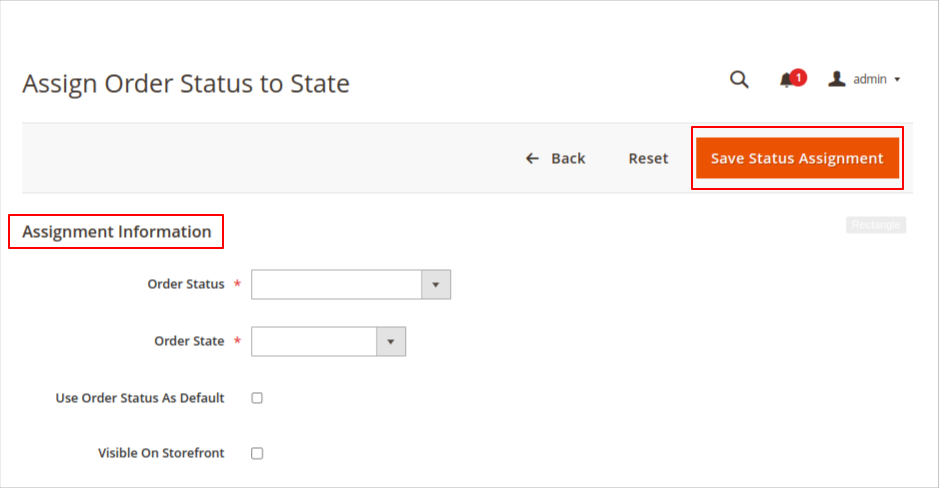
- In the Order Status page, click Assign Status to State.
- Into the Assignment Information segment,
- Select the Order Status to assign from the list.
- Choose the Oder State for the assigned order status.
- Checkmark the Use Order Status As Default, to accept the order status as default status.
- Checkmark the Visible On Storefront, to show up order status in the store frontend.
- Lastly, hit the Save Status Assignment button.
STEP 5: Modify the available order status.
- From the list of order status, find out the one you want to change and open it in the edit mode.
- Change the information as per the requirement.
- And, Save Status to complete the modification.
STEP 6: Delete order status from existing status.
Final Thoughts:
So this was the easiest way which we have told you in this blog. This is how you can custom order status created in Magento 2. Hope you liked the blog.
So quickly go to the comment box and tell me how you like this blog?
Stay tuned with us on our site to get new updates of Magento.
Thanks for reading and visiting our site.
