

Hello Everyone,
In this blog we will learn how to configure product stock in Magento 2?
Without wasting your time, let us guide you straight away. Follow the easy step given below to edit your details in magento 2.
STEPS FOR CONFIGURE PRODUCT STOCK IN MAGENTO 2.
MANAGE STOCK OPTIONS
Step 1: First go to the Magento 2 store Admin Panel and login.
Step 2: Now go to the menu bar on the side. Click on the Stores > Setting > Configuration.
Step 3: Now click on the Catalog option.
Step 4: Now expand the Stock Options part.

- Decrease Stock When Order is Placed:- Set this option to Yes to reduce the stock when there is any purchase.
- Set Items’ Status to be In Stock When Order is Cancelled:- Select Yes for this field to add the items in the stock when there is any cancellation of the order.
- Display Out of Stock Products:- It will show the out of stock items in the catalogue if set to Yes.
- Only X left Threshold:- This will show the customers the quantity left for a particular product. Set the value accordingly. Like, only 1 left!
- Display Products Availability in Stock on Storefront:- Setting it to Yes, it will show the stock of product availability in the storefront.
- Click on Save Configuration completing the process.
MANAGE PRODUCT STOCK OPTIONS
Step 1: First go to the Magento 2 store Admin Panel and login.
Step 2: Now go to the menu bar on the side. Click on the Stores > Setting > Configuration.
Step 3: Now click on the Catalog option.
Step 4: Now expand the Product Stock Options part.
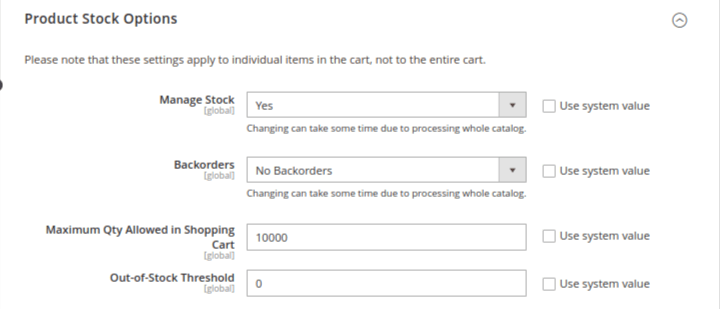
- Manage Stock:- To know the number of products remaining in the stock, set this option to Yes.
- Backorders:- Whether to allow backorders even if the quantity is 0 or restrict backorders.
- Maximum Qty Allowed in Shopping Cart:- The mentioned value will be the maximum number of products to be added in the shopping cart.
- Out-of-Stock Threshold:- The out of stock notification is shown in the storefront if the stock is less than the value set here.

- Minimum Qty Allowed in Shopping Cart:- The mentioned value will be the minimum number of products to be added in the shopping cart. Here, you can select the customer group as well.
- Notify for Quantity Below:- The admin is notified when the quantity reaches below the set value.
- Enable Qty Increments:- If you set it to Yes, you need to enter the value. Afterward, the quantity is increased by the number of the value set.
- Automatically Return Credit Memo Item to Stock:- Enabling it will return the product to the inventory if there is any credit memo issue
- Click on Save Configuration completing the process.
Final Thoughts:
So, This was the easiest way which we have told you in this blog. This is how you can configure product stock in Magento 2. Hope you liked the blog.
So quickly go to the comment box and tell me how you like this blog?
Stay tuned with us on our site to get new updates of Magento.
Thanks for reading and visiting our site.
